
Managing Applications
Overview
Use the Applications page to view, manage, and maintain all configured applications.
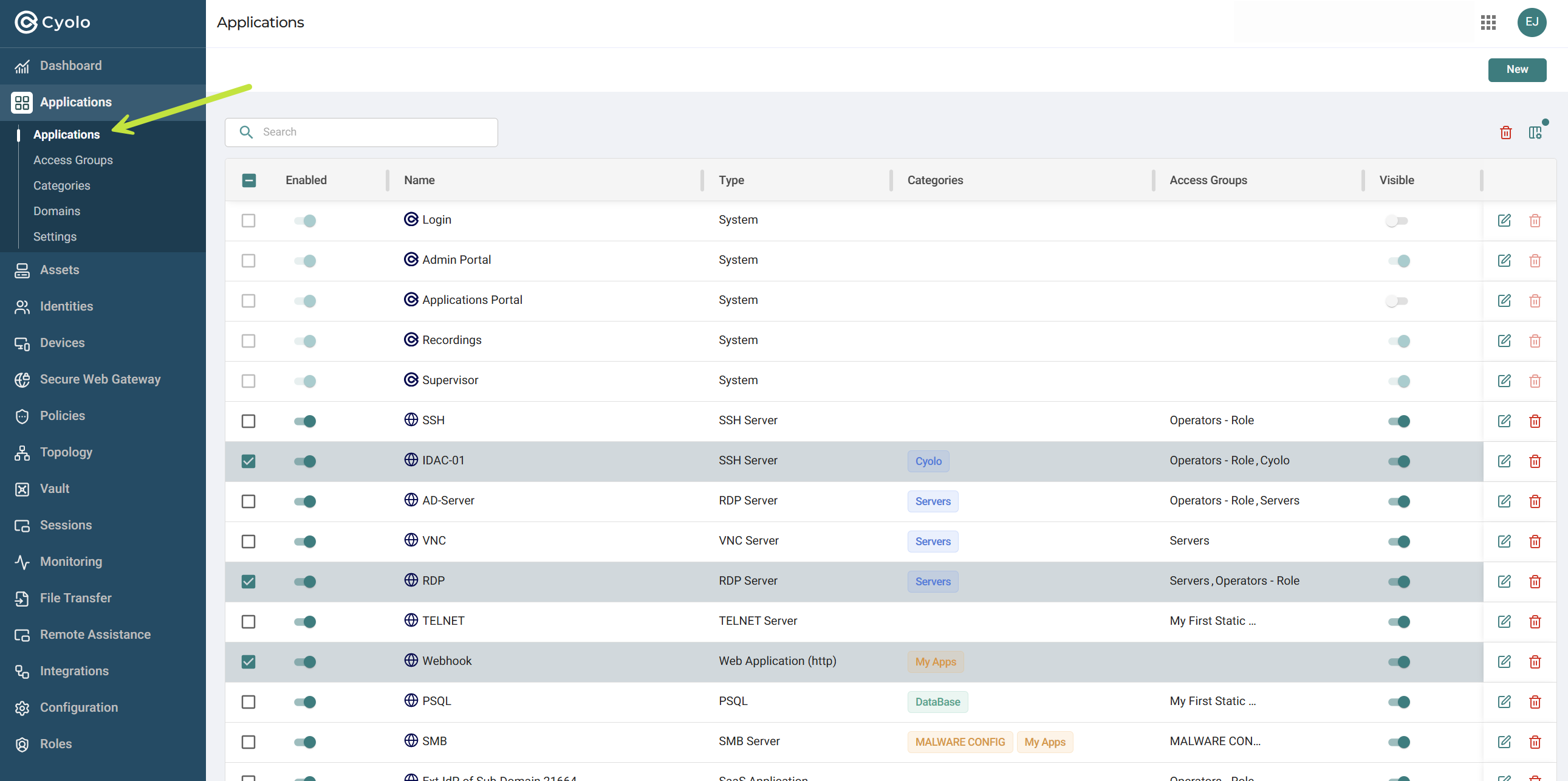
From this page, you can:
- Enable or disable applications
- Edit application configuration
- Delete applications
- Manage visibility in the Application Portal
- Customize the table view
Applications Table
The Applications table lists all configured applications and provides key details such as:
- Name
- Type
- Assigned identities
- Categories
- Access groups
- Visibility status
- Associated asset
You can sort and search within the table to locate specific applications.
Enable or Disable an Application
Use the Enabled toggle to control whether an application is active.
- When enabled, the application is available according to its configuration
- When disabled, the application is not accessible to users
Changes take effect immediately.
Edit an Application
To modify an application:
- Click the Edit icon for the application
- Update the required settings
- Save the changes
This opens the full configuration flow, where you can update connection settings, authentication, identities, and rules.
Delete an Application
To delete a single application:
- Click the Delete icon
- Confirm the action
Deleting an application permanently removes it and its configuration.
Delete Multiple Applications
To delete multiple applications:
- Select the checkboxes next to the applications
- Click the delete action
- Confirm the deletion
Use this option to remove multiple applications at once.
Manage Visibility in the Application Portal
Use the Visible toggle to control whether the application appears in the user Application Portal.
- Enabled: Application is visible to users
- Disabled: Application is hidden from the portal
This does not affect access rules, only visibility.
Customize Table Columns
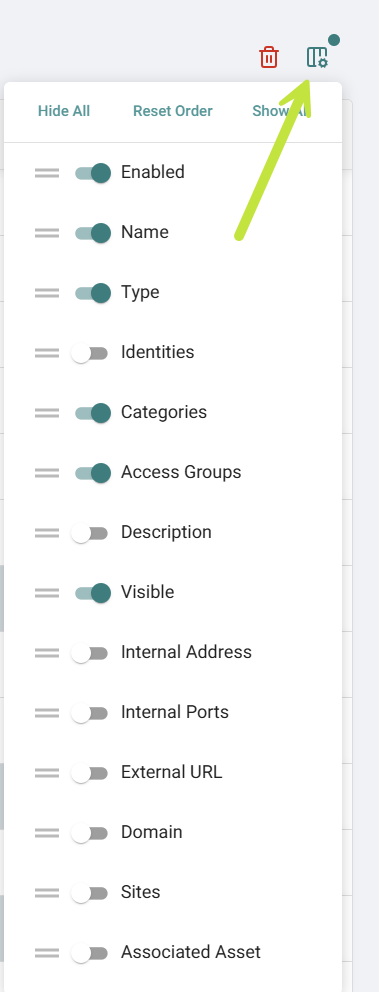
You can control which columns are displayed in the Applications table.
- Show or hide columns using the toggle switches
- Reorder columns by dragging them
- Reset to the default layout if needed
This allows you to tailor the table view to your needs.
Updated 4 months ago