
Approver Guide
In Cyolo, an administrator decides whether access to an application requires approval, and assigns one or more Approvers to review those requests. If you've been assigned as an Approver, a user's access is held until you (or another assigned Approver) respond to their request.
As an Approver, you can:
- Approve or deny a request, with the requester's access justification shown alongside it.
- Act from wherever is easiest — respond directly from an SMS, WhatsApp, or Email notification, or review everything waiting on you at once in the Supervisor Portal.
Where you can act from
- SMS message
- WhatsApp message
- Email message
- The Supervisor Portal, at
https://supervisor.[your tenant URL]
SMS, WhatsApp, and Email notifications all work the same way: they contain a link to the specific request. See Approving via SMS, WhatsApp, or Email.
You can also open the Supervisor Portal directly at any time to review all requests waiting on you, rather than acting from an individual notification. See Approving via the Supervisor Portal.
Approving via SMS, WhatsApp, or Email
When a user requests access to an application that requires your approval, you receive a notification by SMS, WhatsApp, and/or Email, depending on your organization's configuration and the contact methods you've enrolled.
Note
If you haven't enrolled a phone number or email address, you won't receive any of these notifications. You can still approve or deny requests from the Supervisor Portal.
Types of Access Requests
Every request you review is one of two types. The type determines when the user's access actually starts and ends once you approve it.
- Immediate — Access begins instantly and ends when the user logs out. Sometimes shows the requested duration of access (for example, 30 min).
- Scheduled — Access starts and ends at the specific date and times the user selected when submitting the request. Shows the requested timeframe.
Either type also shows the justification the user entered, when one was provided.
Common to all three channels
Each notification contains a link to the specific request. Opening the link shows an Access Request card with the requester's name, the application, the tenant hostname, and the request type, along with three actions: Change Timeframe, Deny, and Approve. These three actions are available as long as the request hasn't already been approved, denied, or expired.
Note
You cannot approve or deny a request by replying to the SMS, WhatsApp, or Email message itself — you must open the link and use the card's buttons to act on it.
SMS
The SMS message is short, and includes the name of the user requesting access, the application they want to access, and the link to open. Opening the link shows the same Access Request card described above.
Example:
to approve access for [Requester Name] to [Application Name]: [link]
WhatsApp
WhatsApp notifications are only sent if your organization has WhatsApp enabled. Some organizations configure the system to try WhatsApp first and fall back to SMS only if WhatsApp delivery fails.
Example:
Hello,
[Requester Name] has requested access to [application].
To ensure security, this request requires your approval.
Please review the details carefully and approve the request using the link below:[link]
If you did not expect this request, you can safely ignore this message.
Email
The Email notification is the most detailed of the three. It includes:
- The name of the user requesting access (their first and last name, if available, otherwise their username)
- The type of access requested (Immediate or Scheduled) and the application name
- The company name (as configured by your administrator)
- The requested time window, if the request is for scheduled access
- The justification the requester entered, or a note that none was provided
- A Review button, and a separate click here link to open the Supervisor Console directly
Clicking Review opens the Access Request card for that specific request, described above.
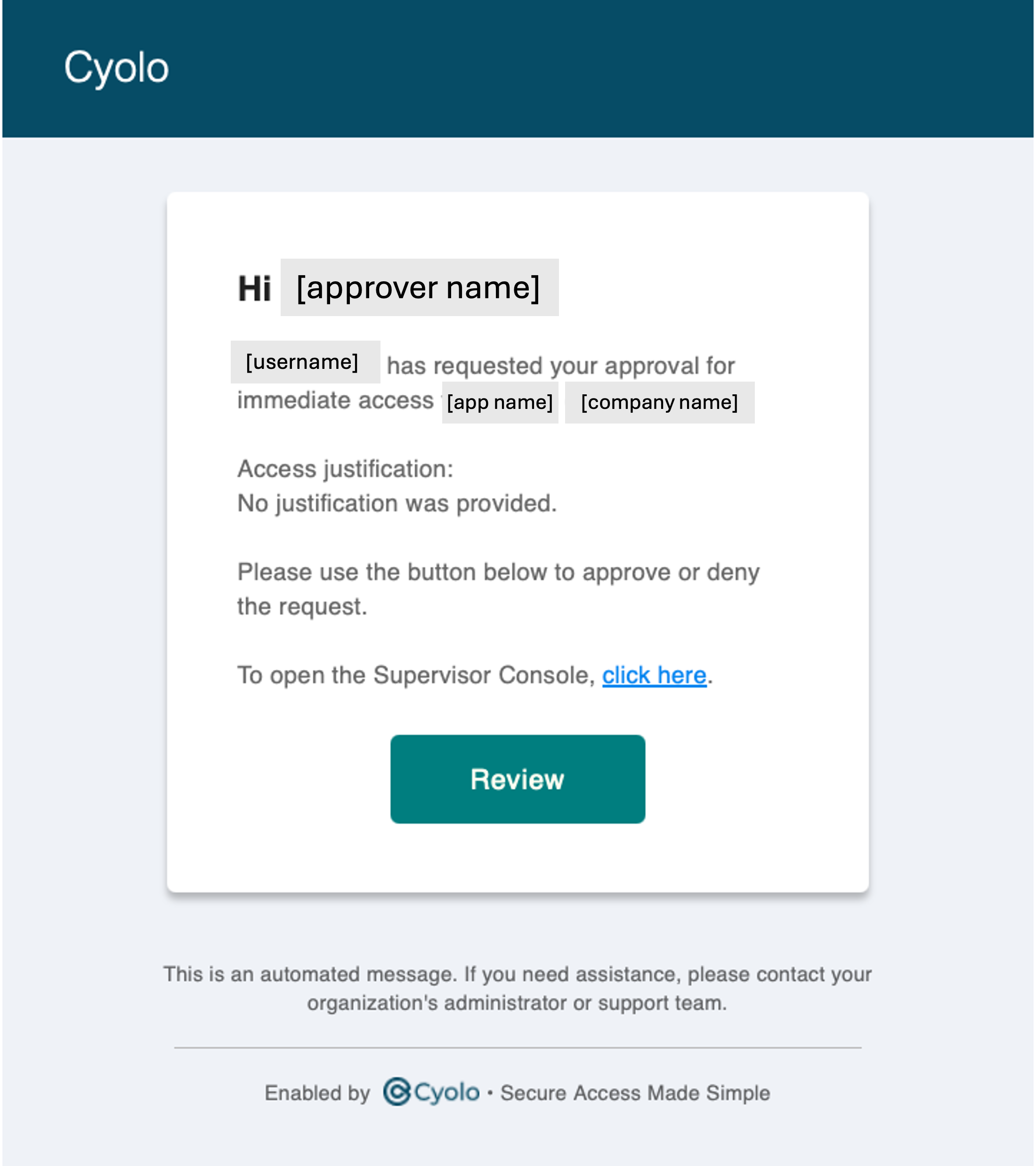
The Email notification an Approver receives
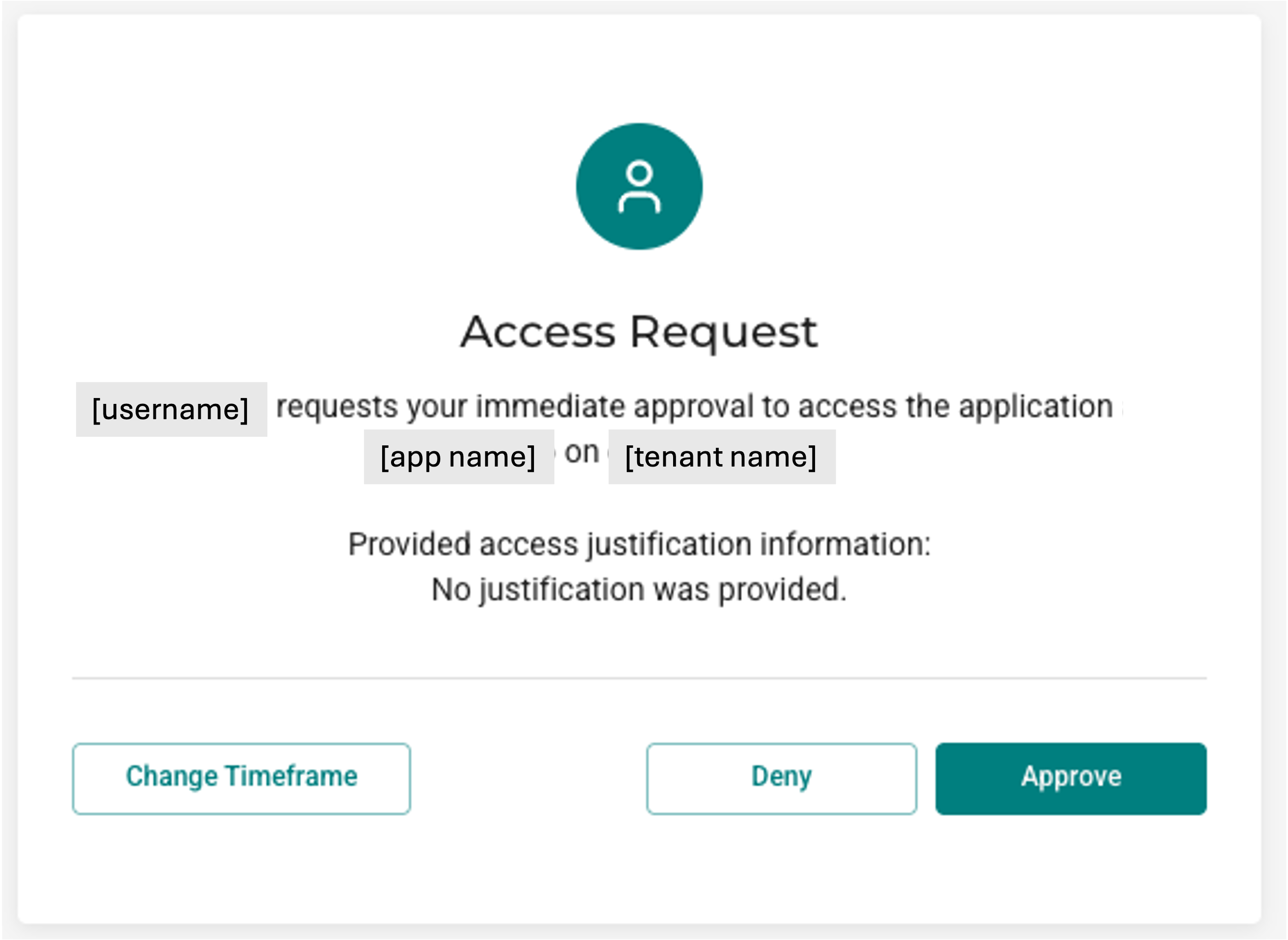
The Access Request card, opened by clicking Review
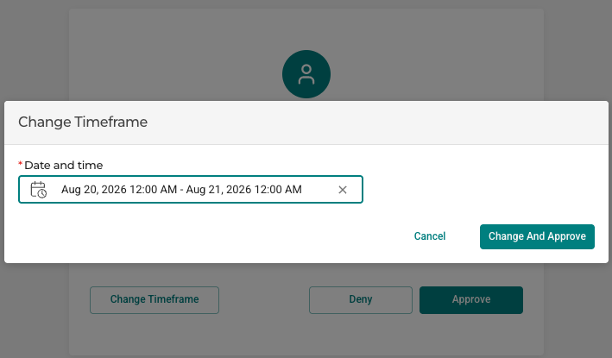
Changing the timeframe before approving
Note
The text under Access justification is whatever the requester entered, including raw values from a custom access request form.
After you respond
You won't receive a separate confirmation message after approving or denying a request — the requesting user is notified of the outcome by email. If you don't respond before the request expires, the request is automatically canceled and the user is notified that it expired.
Approving via the Supervisor Portal
The Supervisor Portal is where you review and act on all requests waiting on you at once. You can open it in either of the following ways:
- Go directly to
https://supervisor.[your tenant URL]. - From the Cyolo Application Portal, click the supervisor tile under System Applications, if you have one.
Note
The link in an SMS, WhatsApp, or Email notification does not open the Supervisor Portal — it opens a standalone Access Request card for that one request. See Approving via SMS, WhatsApp, or Email.
Pending tab
The Pending tab lists all requests waiting on your decision, along with the access justification the requesting user submitted. The tab label shows a count of how many requests are pending.
| Request No. | Username | Application | Request Type | Submission time | Expires in | Timeframe | Time Left |
|---|---|---|---|---|---|---|---|
| 9 | [Requester Username] | RDP-access form | Immediate | Aug 16, 2026, 4:13 PM | +00:07:48 | Upon log out |
The Request Type column shows Immediate or Scheduled — see Types of Access Requests for what each means for the user's access.
Use the search bar above the table to find a specific request. Each row has three actions on the right:
- Clock icon — change the requested timeframe before deciding.
- Green checkmark — approve. In the Approve Request window, optionally enter a message for the user, then click OK.
- Red X — deny.
A progress bar under each row shows how much time is left before the request expires automatically.
Note
The clock icon isn't available for requests that are part of a sequential approval chain (multiple Approvers required in a defined order).
Approved tab
The Approved tab lists requests you've already approved.
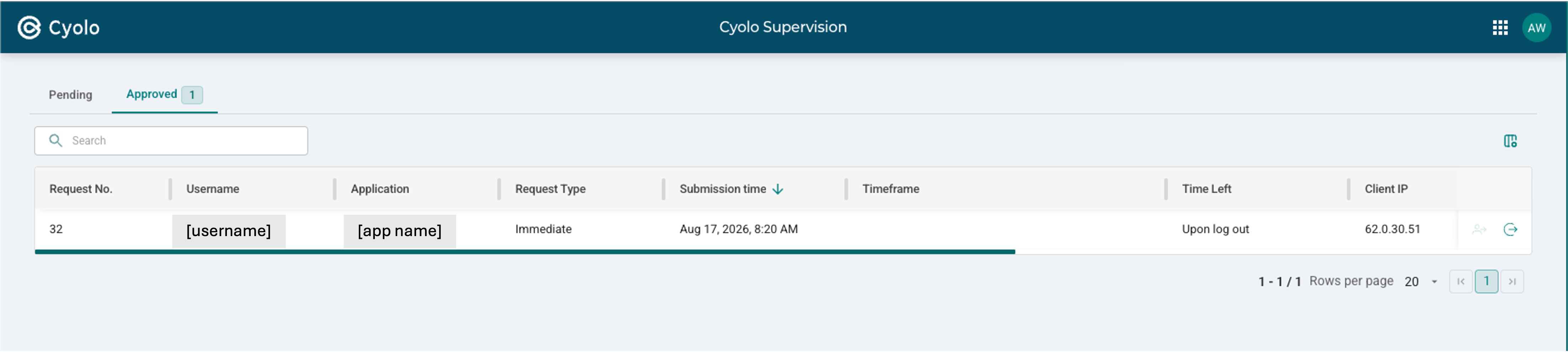
The Approved tab
Each row has two actions:
-
Terminate (close-session icon) — ends the user's access immediately, even if it hasn't expired yet. Before confirming, you can optionally write a message to the user explaining why you're terminating their access, and separately write a message to the activity log for your administrator to see.
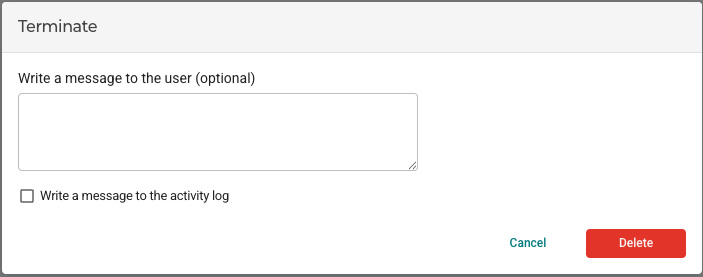
Terminating a session
-
Join — appears only if you're also assigned as an Active or Observer Supervisor for the application (a separate role from Approver); lets you view or participate in the live session once the user connects. Ask your administrator if you're unsure which supervision roles you hold.
Updated 2 months ago