
How to Configure Personal Secrets
Overview
You can configure use of a single personal secret across multiple applications, simplifying user credential management.
Configuring Shared Personal Secrets
Under Vault
You can configure shared personal secrets via the Admin Portal:
- Navigate to Vault > Personal Secrets.
- Create labels to group applications that should share a common personal secret.
- Assign applications to the desired label group.
For Each Application in the Personal Secret Group
- Under the application's SSO settings, select the Personal Secret option.
- Choose an existing label or create a new one.
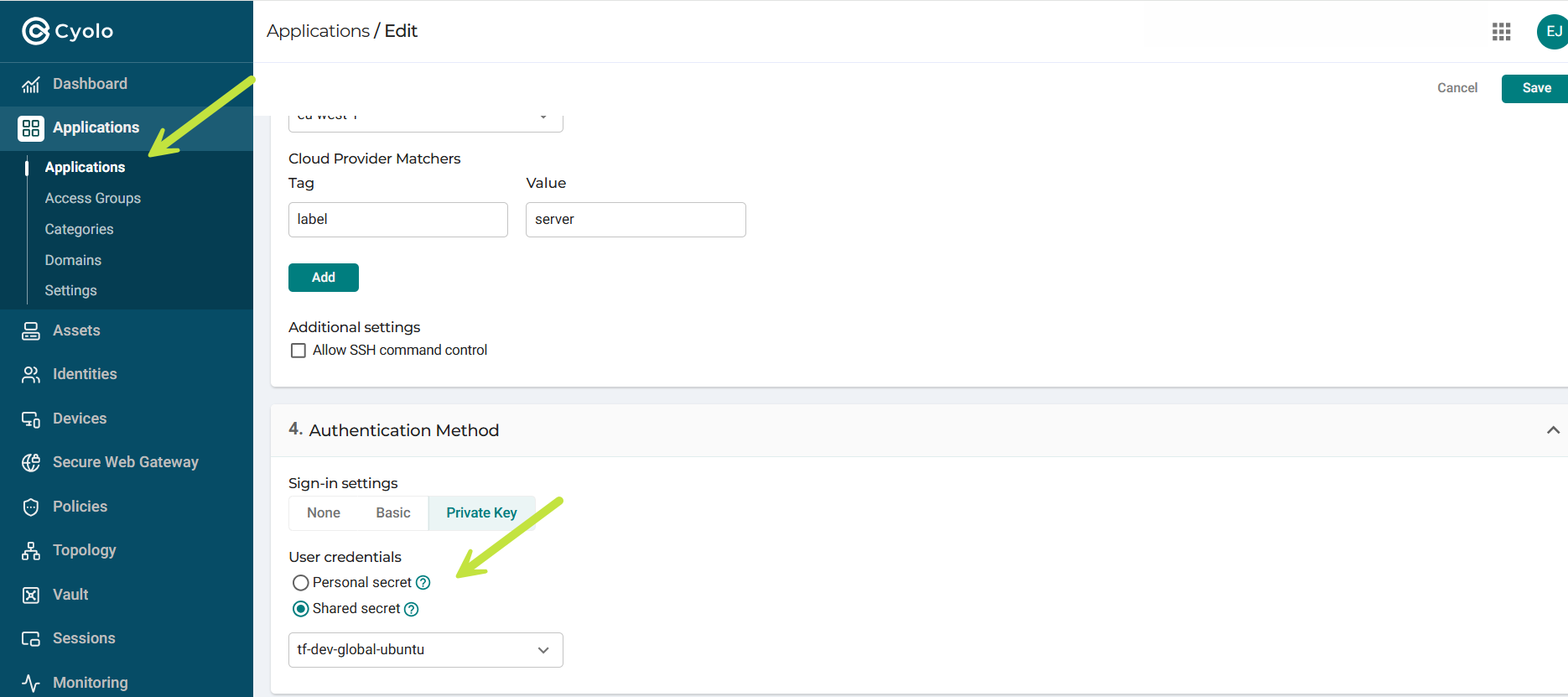
- Basic — Basic authentication is selected when the credentials are username and password. Basic authentication is available when HTTP, HTTPS, RDP, SSH, VNC, TELNET, PSQL, and SMB type of applications are selected under the Protocols section. These are the options available for basic authentication:
- User logon credentials – The credentials used to log in to the Applications Portal are used to access the application. The user will not be prompted for a username and password.
- Prompt user and store in personal vault – The user will be prompted for a username and password when connecting for the first time. The credentials will be stored in the user's personal vault and automatically used for every subsequent sign-in attempt, so the user will not be prompted for credentials thereafter.
- Assign secret from vault – With this option set, the portal admin stores the application's username and password in the system vault. When the user connects to the application, they are not prompted for credentials; instead, the stored credentials are used in the background to sign in the user. For more information on vaults, refer to the section: Vault.
End User Experience
Ongoing Use
- When users first access any application grouped under a label, they will be prompted to enter their credentials.
- After initial entry, the secret is securely stored in the user's personal vault.
- Subsequent access to applications within the same label group will automatically use the stored secret.
Viewing and Managing Secrets
- End users can view which applications are associated with each shared secret on the User Secrets page.
- End users can delete a secret. Deleting a secret will remove it from all applications assigned under the corresponding label.
Updated 7 months ago
Did this page help you?