
Configuring Malware Detection and Handling
Overview
Cyolo enables malware detection for file transfers over SMB and Secure File Transfer (SFT) applications. This ensures that files are inspected before being before transferred to the destination server, helping prevent the spread of malicious content.
You can configure malware detection using:
- Cyolo service (hash-based reputation)
- External integration (deep scanning via third-party ICAP engines)
When configuring malware detection, you must decide how the system should behave in cases where a file cannot be definitively classified. These situations may occur when:
- A file hash is unknown
- A scan fails due to timeout or service issues
Your configuration determines whether such files are allowed or blocked, which directly impacts both security and user experience.
The main malware handling configurations supported by Cyolo are detailed below.
Note
Several major enhancements will be included in version 7.1 release, including scanning of RDP and SSH file transfers.
Configuration Options
Most Conservative (Maximum Security)
Use this when security is the top priority. This minimizes risk but may result in legitimate files being blocked.
Blocks all files unless they are explicitly verified as safe.
- Blocks malicious files
- Blocks files with unknown status (e.g., unknown hash, scan failure)
Balanced (Fewer False Positives)
Use this when you want strong protection without disrupting business workflows. This reduces false positives while still blocking known threats.
Blocks only confirmed malicious files while allowing files with unknown status.
- Blocks malicious files
- Allows files with unknown status
Allow Exceptions via Policy
Use this for controlled exceptions, such as trusted users, testing environments, or operational needs where blocking is not acceptable.
Allows you to override malware handling for specific users, applications, or scenarios.
- Can allow files even if flagged as malicious
- Can log or report instead of blocking
How To Configure Each Option
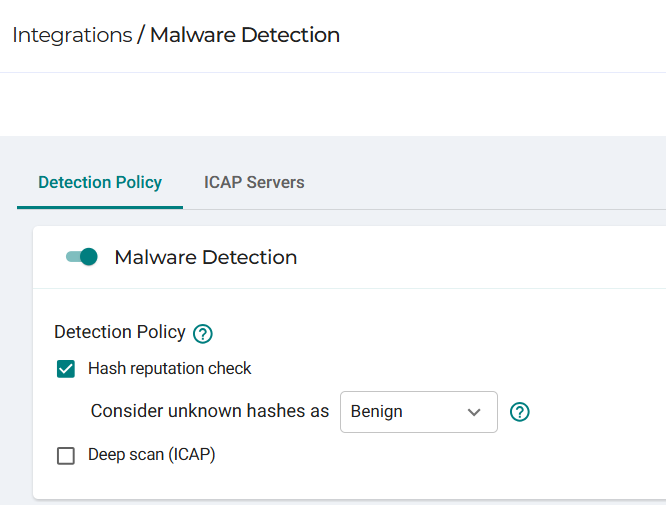
Most Conservative Configuration
Go to Integrations > Malware Detection
- Enable Malware Detection
- If using Hash reputation:
- Enable Hash reputation check
- Set Consider unknown hashes as → Malicious
- If using ICAP:
- Enable Deep scan (ICAP)
- Set detection failure behavior → Fail close (block)
- If using both (Hash reputation + ICAP):
- Enable Hash reputation check
- Enable Deep scan (ICAP) as fallback
- Set detection failure behavior → Fail close (block)
Result:
All files that are malicious or undetermined are blocked.
Balanced Configuration (Fewer False Positives)
Go to Integrations > Malware Detection
-
Enable Malware Detection
-
If using Hash reputation:
- Enable Hash reputation check
- Set Consider unknown hashes as → Benign
-
If using ICAP:
- Enable Deep scan (ICAP)
- Set detection failure behavior → Fail open (allow)
-
If using both (Hash reputation + ICAP):
- Enable Hash reputation check
- Enable Deep scan (ICAP) as fallback
- Set detection failure behavior → Fail open (allow)
Result:
Only confirmed malicious files are blocked. Unknown files are allowed.
Allow Exceptions via Policy
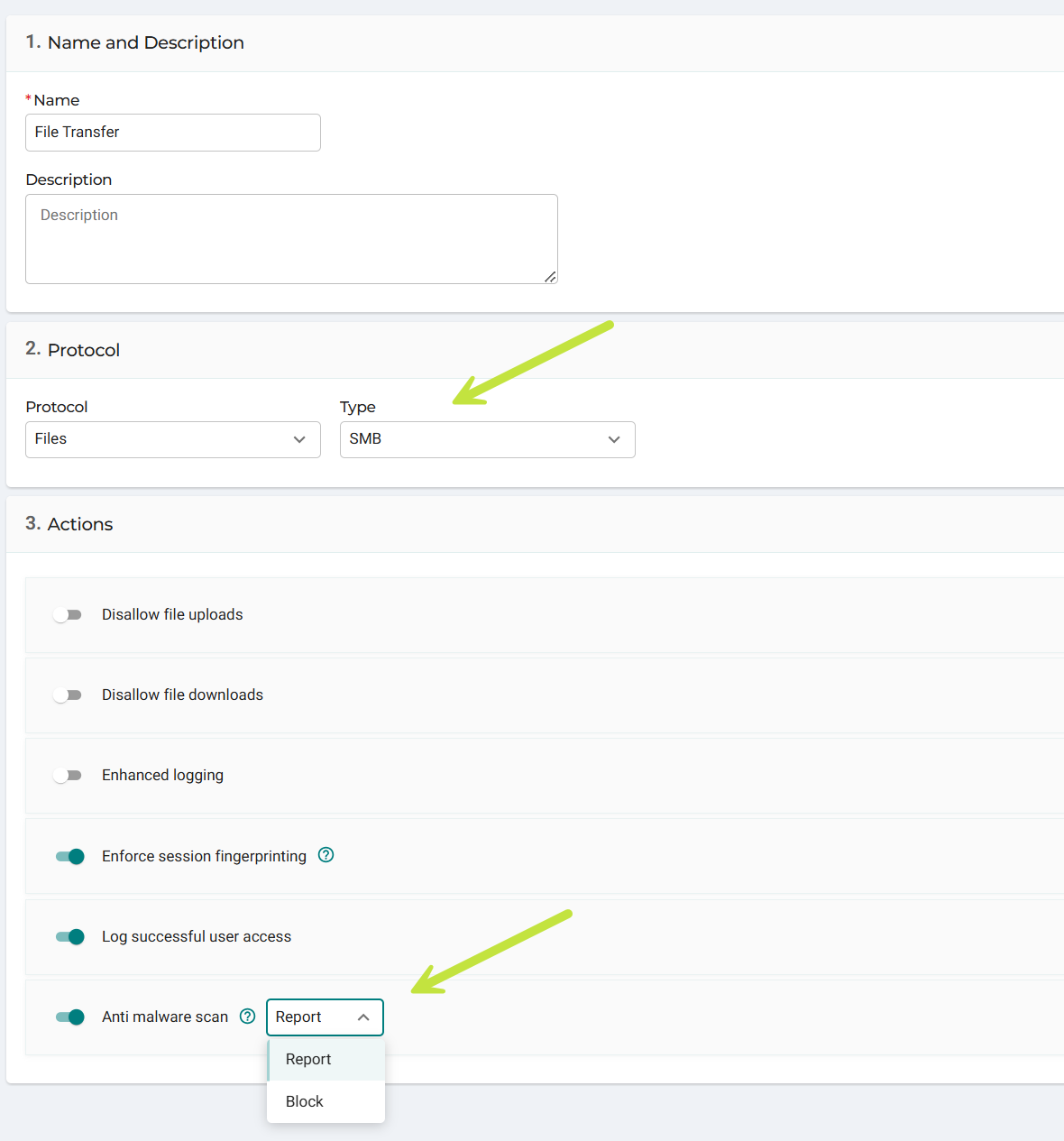
- Configure malware detection globally (recommended: Balanced or Conservative)
- Go to Policies > Actions
- Edit the relevant action profile (e.g., SMB application)
- Under Anti-malware scan:
- Disable to fully bypass malware checks, or
- Set to Report to log detections without blocking
Result:
Selected users or applications can transfer files even if they are flagged as malicious or cannot be scanned.
Updated 5 months ago