
Other Global Settings
The Global Settings page under the Configuration menu on the Cyolo admin portal has options to configure conditions that are enforced on users of the Cyolo Application Portal and the admin portal. These conditions are enforced in addition to conditions configured in policies.
These settings are grouped as follows:
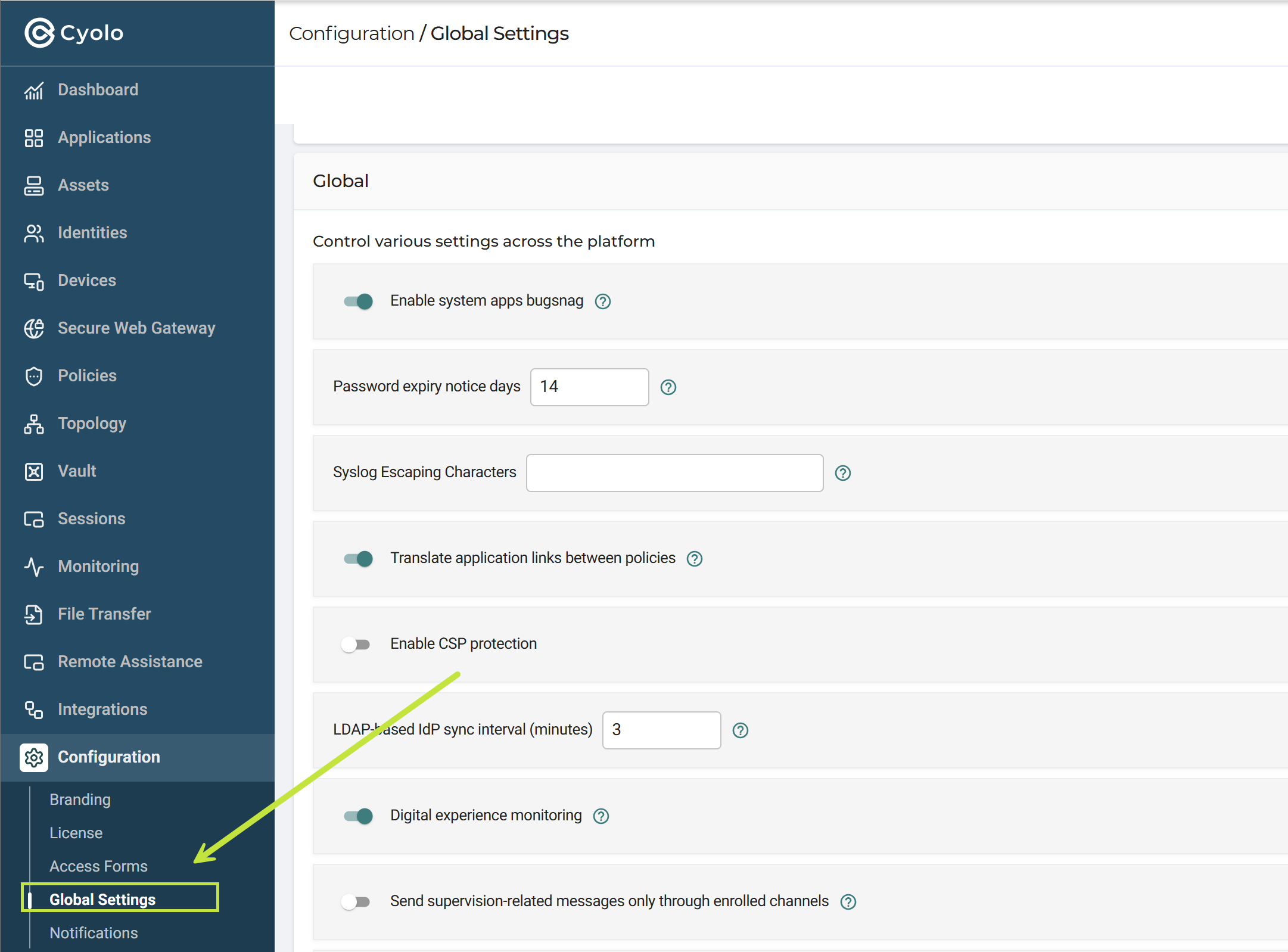
Use the dropdown menu to navigate to a group of settings (e.g, , Device Posture, Recordings, etc.), or search for a specific setting.
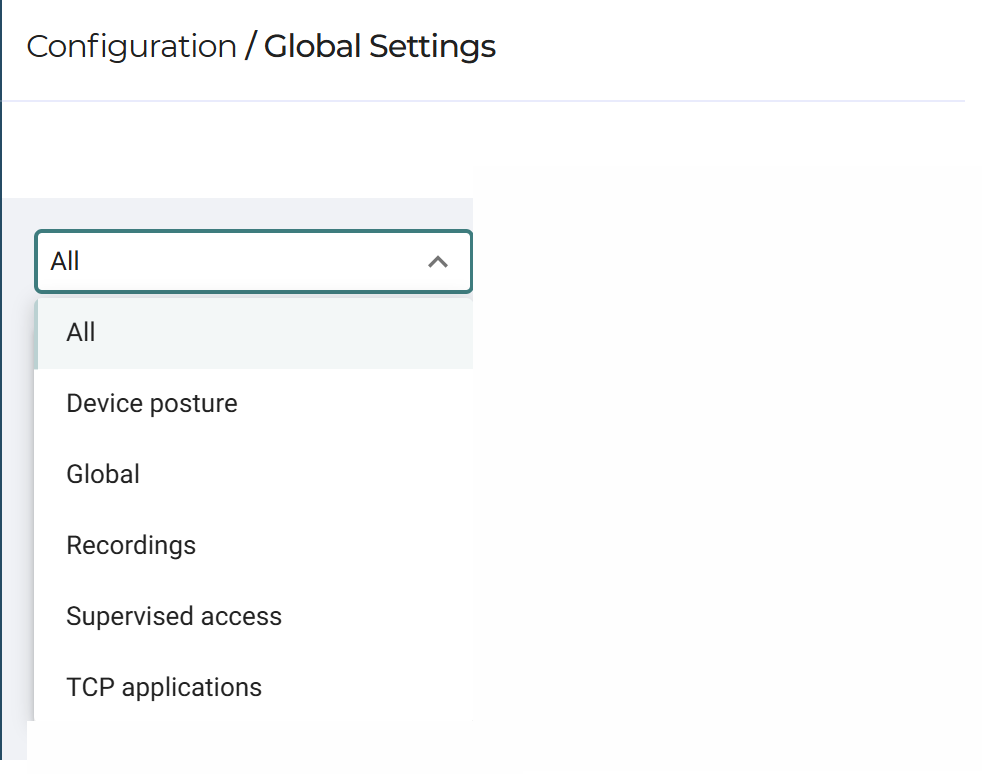
Explanations of each setting appear below.
Device Posture
Enable the device posture feature - This is disabled by default. Until this is enabled, the Device Posture menu will not be displayed under the Policies page.
Enable the device posture custom check feature -- Enable this option to enforce the conditions configured on the Policies > Device Posture page.
Global
Enable system apps bugsnag -- This option will enable monitoring of mobile application performance, bugs, and stability.
Password expiry notice days - Set the number of days to alert the user before expiry of local or LDAP passwords. The default is set to 14 days.
Syslog Escaping Characters -- Certain characters could be interpreted in unintended ways by the Cyolo platform when processing log messages, leading to unexpected consequences. To avoid this, enter
the characters that must be escaped and processed as-is when generating syslog messages.
Translate application links between policies -- This option translates web application URLs across all authorized policies.
Enable CSP protection - Disabled by default. Enable it for Content Security Policy protection to be implemented on browsers against threats, such as Cross-Site Scripting, data injection attacks etc.
LDAP-based IdP sync interval (minutes) -- Set the interval for syncing users and settings of integrated LDAP- based identity providers. The default is 60 minutes.
Digital experience monitoring -- This option monitors the latency within the network.
Send supervision-related messages only through enrolled channels -- When a user is assigned as a supervisor, they receive email and SMS alerts only if the user has enrolled using email and SMS.
Enable remote assistance -- Enable this option to allow remote assistance capabilities for users within the platform.
SCIM batch interval in seconds -- Set the interval (in seconds) between SCIM provisioning batch operations. The default is 5 seconds.
SCIM batch size -- Set the number of users or objects processed in each SCIM batch. The default is 100.
Try WhatsApp for user messages before falling back to SMS -- When enabled, the system attempts to send messages via WhatsApp first, and falls back to SMS if delivery fails.
HSTS max-age in seconds -- Define the duration (in seconds) for which browsers should enforce HTTP Strict Transport Security (HSTS). The default is 600 seconds.
Enable system host access for administrators -- Allow administrators to access system hosts directly when enabled.
Use new format for sticky route hints -- Enable the updated format for sticky routing hints used in request handling.
Output logs to stdout only -- When enabled, logs are written only to standard output instead of other logging destinations.
Output logs in JSON format -- Enable structured logging in JSON format for easier parsing and integration with log management systems.
Export measurements to log -- Enable exporting system measurement metrics into logs.
Notes on Remote Assistance
Overview
Remote Assistance enables authorized operators (such as IT administrators or help desk personnel) to join active user sessions and provide real-time support.
Operators can request access to a session to view or take control, depending on the configured policies. Access may require user approval or be granted automatically based on role.
All Remote Assistance activity is fully logged and auditable. This feature removes the need to share credentials or rely on external remote support tools.
Assignments
Assistant-to-recipient assignments are displayed in a centralized table, including accurate user and group counts.
From this table, you can create, edit, and remove assignments. This provides clear visibility into access relationships, supports audits, and helps prevent outdated or misconfigured permissions.
Session Recording
Remote Assistance sessions can be recorded and played back, providing a complete audit trail for compliance, investigations, and knowledge sharing.
Elevation Mode
Defines the permission level used during Remote Assistance sessions:
- User mode: Runs with the permissions of the signed-in user
- System mode: Runs with elevated privileges, allowing interaction with UAC prompts and locked screens
This setting is configured per tenant, applied to agents, and fully audit-logged.
Multi-Monitor Support
Assistants can switch between remote displays or view them in a combined layout. When supported, each remote monitor can be displayed on a separate local screen.
Recordings
Maximum disk space for recordings (GB) -- Set the maximum disk space allocated for storing session recordings. The default is 50 GB.
Enable recording downloads -- Allow users or administrators to download session recordings when enabled.
Estimate per recording in megabytes -- This setting works in tandem with the lease recording mechanism feature. Set the estimated size of each recording. The default is 100 megabytes.
Safety threshold for the recording leaser in megabytes -- Set the minimum available size for the recording to begin. The default is set to 2000 megabytes.
Session recording retention days -- Set the number of days for a session recording to be retained. The default is 0 days.
Enable lease recording mechanism - Disabled by default. The lease mechanism takes into account the available storage against the estimated size of the recording and the threshold level.
Global auditors can manage orphaned recordings - Disabled by default. Enable this setting to allow auditors to manage orphaned recordings.
Stream recordings (Beta) -- Enable streaming access to session recordings instead of downloading full files.
Enable recording transcription -- see below.
Notes on Session Intelligence
Overview
Session Intelligence analyzes recorded RDP sessions and transforms them into searchable transcripts with concise summaries of user actions. This enables plant managers, OT engineers, cybersecurity analysts, and auditors to quickly understand what occurred during remote access sessions without replaying lengthy recordings, improving operational oversight and forensic efficiency.
Configuring Session Intelligence
- The parameter Enable recording transcription is used to activate Session Intelligence.
- Select Automatic/On Demand.
- Only recordings made in Cyolo version 7 and higher support transcription.
- An add-on license is required for this feature.

How to View Transcripts
Transcripts can be viewed via the Recordings Console.
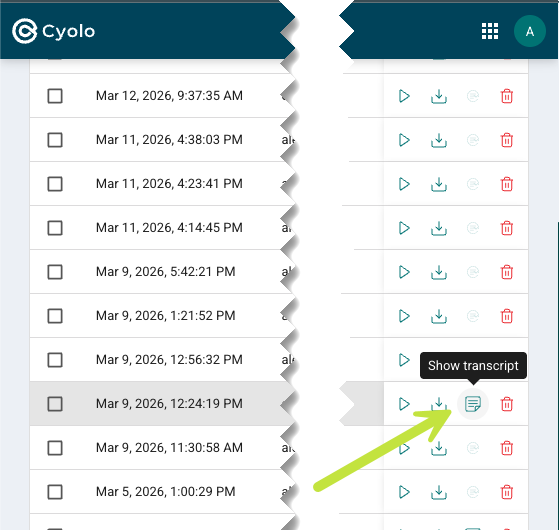
Recordings Console
Supervised Access
Time before access requests expire (in minutes)
Defines how long approvers and login supervisors have to approve or deny immediate access requests before they expire automatically.
TCP Applications
Auto register URI scheme upon load - Disabled by default. Enable this option to add or auto-register users as they are created in a DB into a specific site, so that you do not have to drag and drop.
Updated 5 months ago